


Generate SBOM
Create Software Bills of Materials from source code, containers, and more
Generate SBOM
Enterprise Software Supply Chain Manager (ESSCM) supports generating SBOMs from multiple source types with continuous scanning and intelligent analysis.
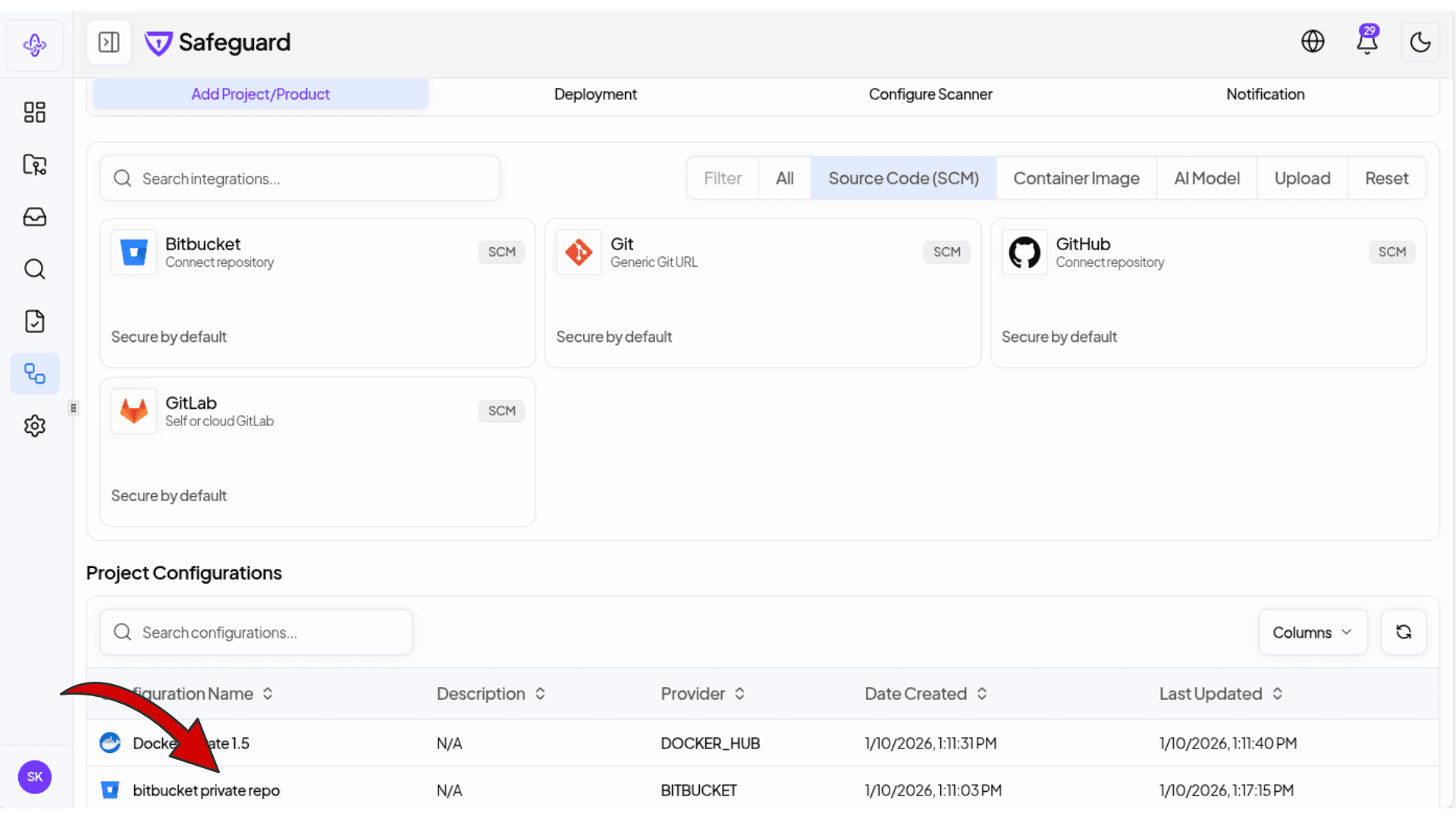
Integrations Page Overview
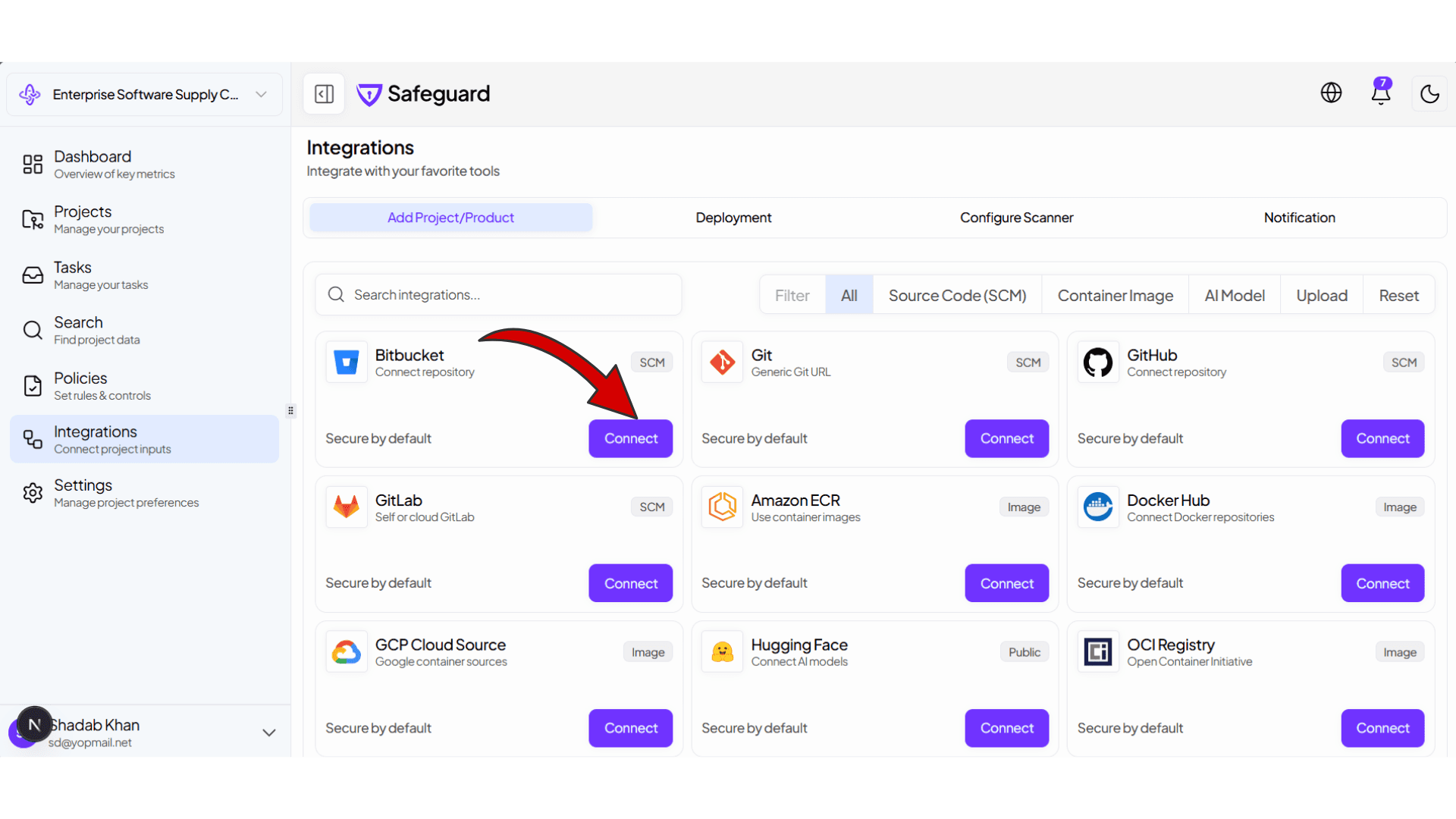
Navigate to Integrations from the sidebar to access all available integration options. The page includes tabs for different functions:
- Add Project/Product - Connect new integrations and add projects
- Deployment - Manage deployment configurations
- Configure Scanner - Set up scanner settings
- Notification - Configure alerts and notifications
You can filter integrations by type using the filter buttons: All, Source Code (SCM), Container Image, AI Model, Upload, or Reset.
Available Integrations
Source Code Management (SCM)
| Integration | Description |
|---|---|
| Bitbucket | Connect public or private Bitbucket repositories |
| Git | Generic Git URL for any Git repository |
| GitHub | Connect public and private GitHub repositories |
| GitLab | Self-hosted or cloud GitLab instances |
Container Images
| Integration | Description |
|---|---|
| Amazon ECR | AWS Elastic Container Registry images |
| Docker Hub | Docker Hub repositories |
| GCP Cloud Source | Google Cloud container sources |
| OCI Registry | Open Container Initiative compatible registries |
AI Models
| Integration | Description |
|---|---|
| Hugging Face | Connect and scan AI models |
File Uploads
| Integration | Description |
|---|---|
| Upload CSAF/VEX | Upload CSAF or VEX files for analysis |
| Upload APK | Upload and scan Android APK files |
| Upload Manifest File | Upload package manifests (package.json, requirements.txt, etc.) |
Example: Adding a Bitbucket Repository
This example demonstrates how to connect a Bitbucket repository. The process differs slightly for public vs private repositories.
Adding a Public Repository
Step 1: Click Connect on Bitbucket
From the Integrations page, click the Connect button on the Bitbucket card.
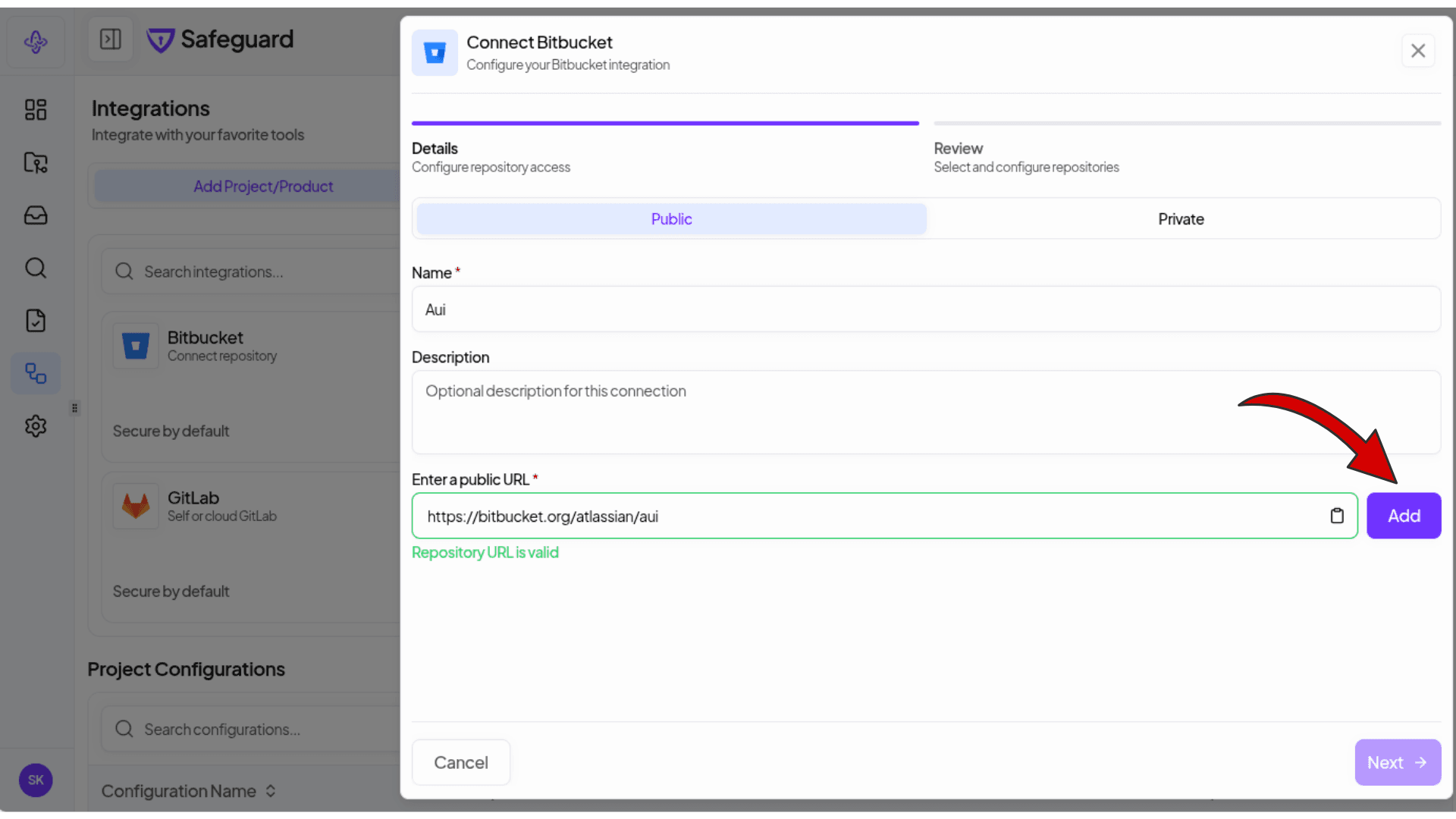
Step 2: Enter Repository Details
- Select Public tab
- Enter a Name for this configuration
- Optionally add a Description
- Enter the public URL of the repository (e.g.,
https://bitbucket.org/atlassian/aui) - The system will validate the URL and show "Repository URL is valid"
- Click Add to add the URL to the list
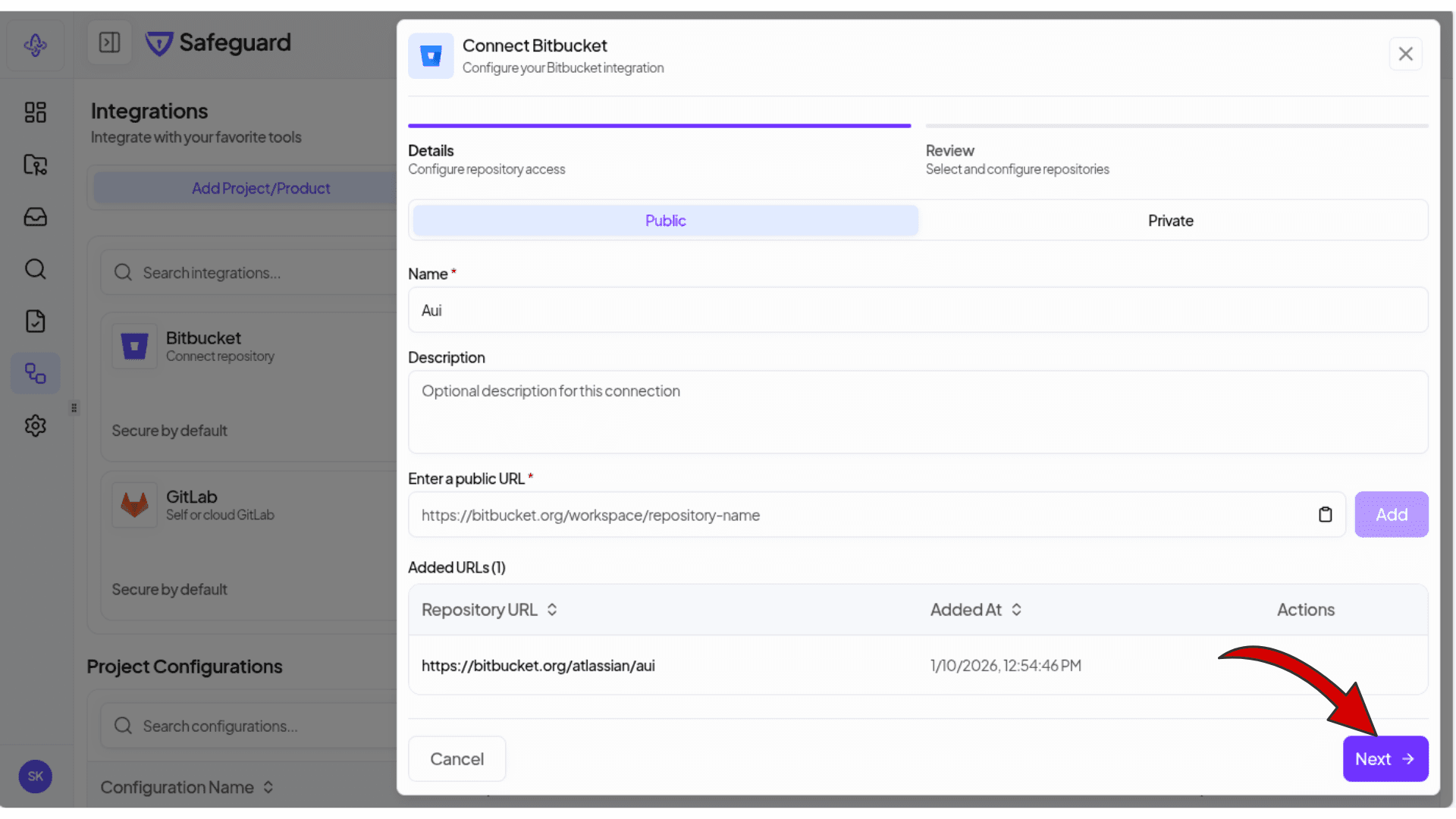
Step 3: Review Added URLs
Your added repository URLs will appear in the Added URLs table showing the Repository URL and when it was added.
Click Next to proceed to the review step.
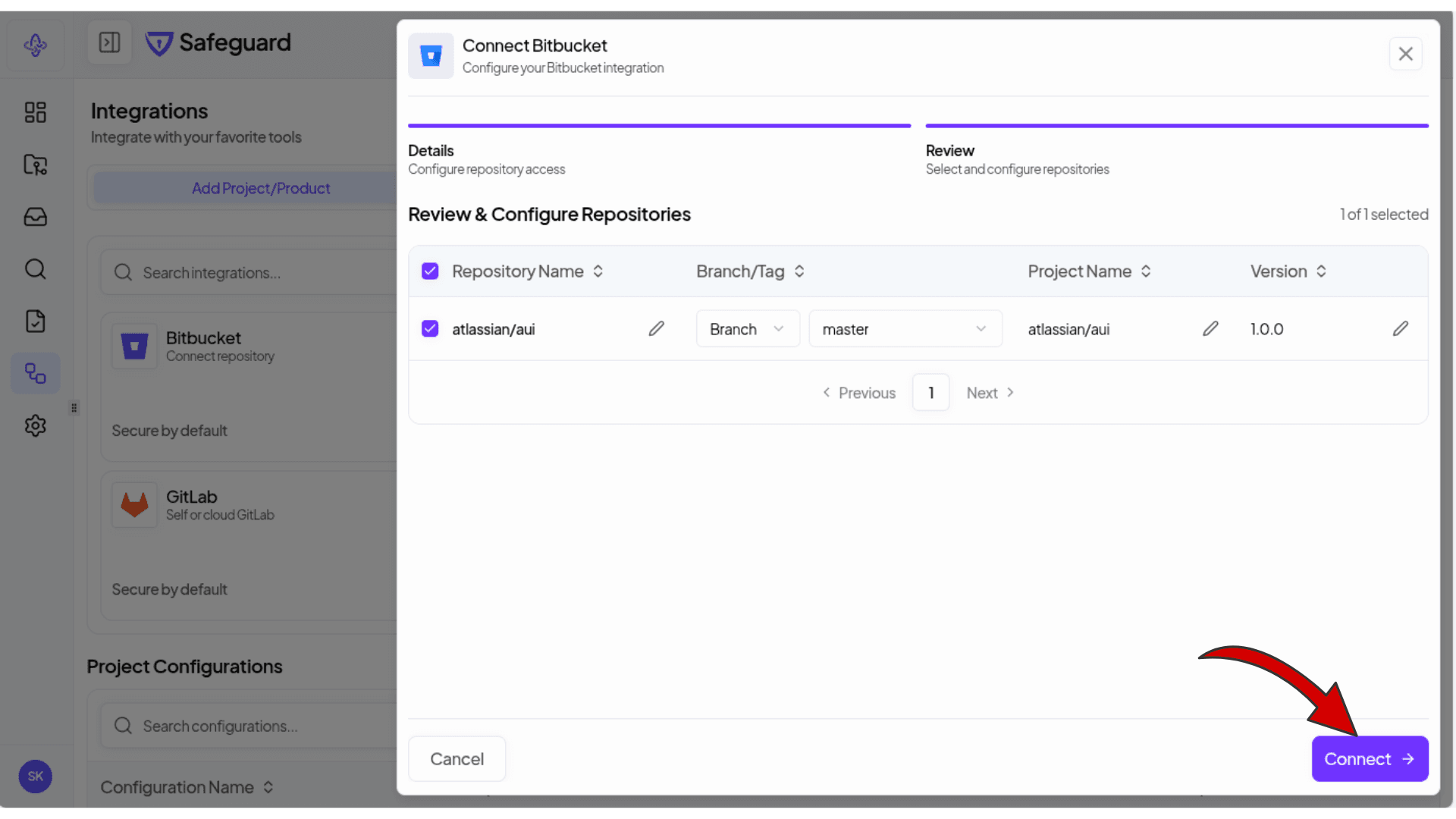
Step 4: Review & Configure Repositories
Review and configure the repositories to be connected:
- Select which repositories to include using checkboxes
- Configure Branch/Tag for each repository
- Set the Project Name (defaults to repository name)
- Set the Version (defaults to 1.0.0)
Click Connect to complete the integration.
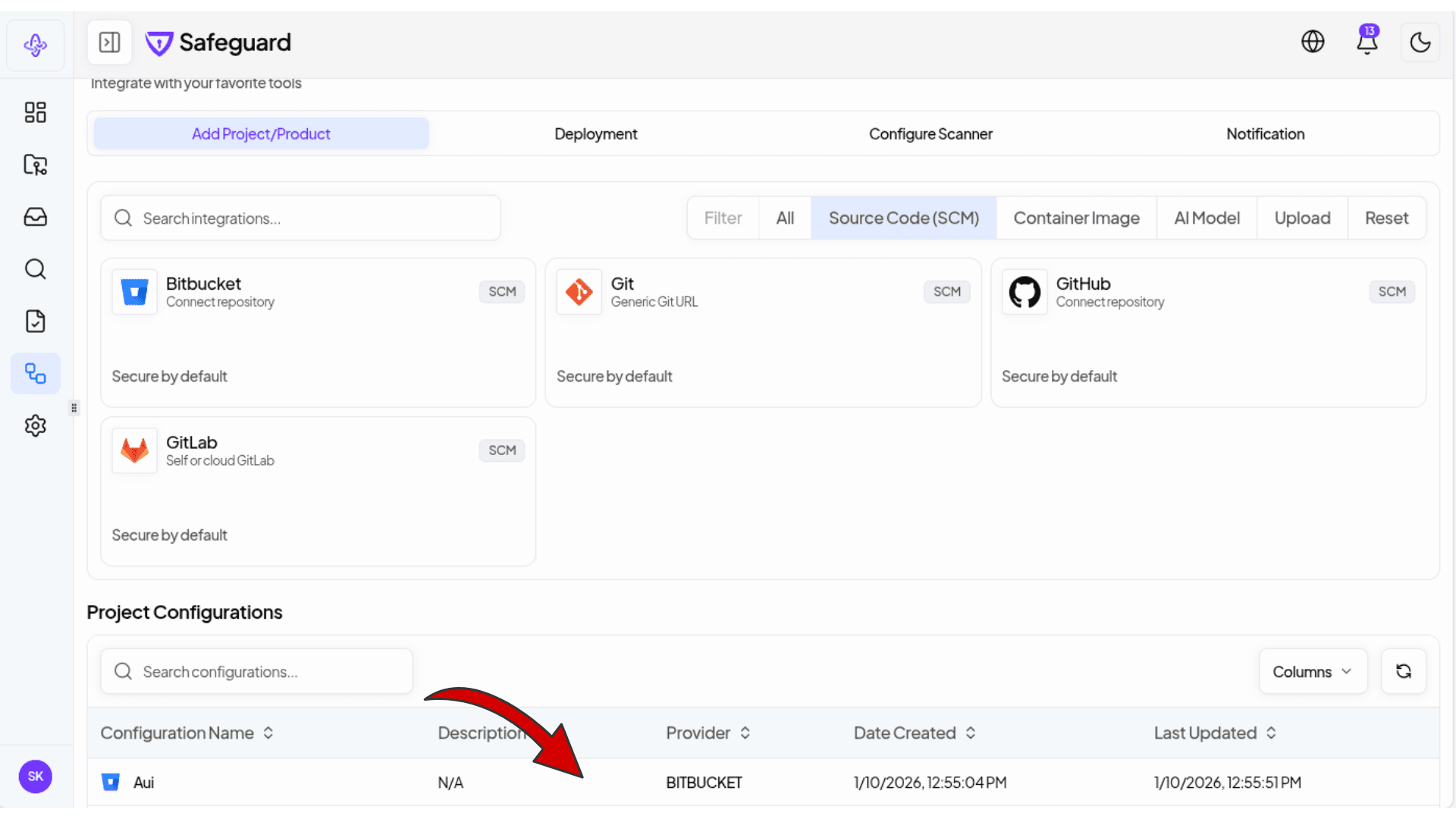
Step 5: View Configuration
After connecting, your configuration appears in the Project Configurations table at the bottom of the Integrations page.
Adding a Private Repository
For private repositories, you'll need to provide authentication credentials.
Step 1: Click Connect on Bitbucket
From the Integrations page, click the Connect button on the Bitbucket card.
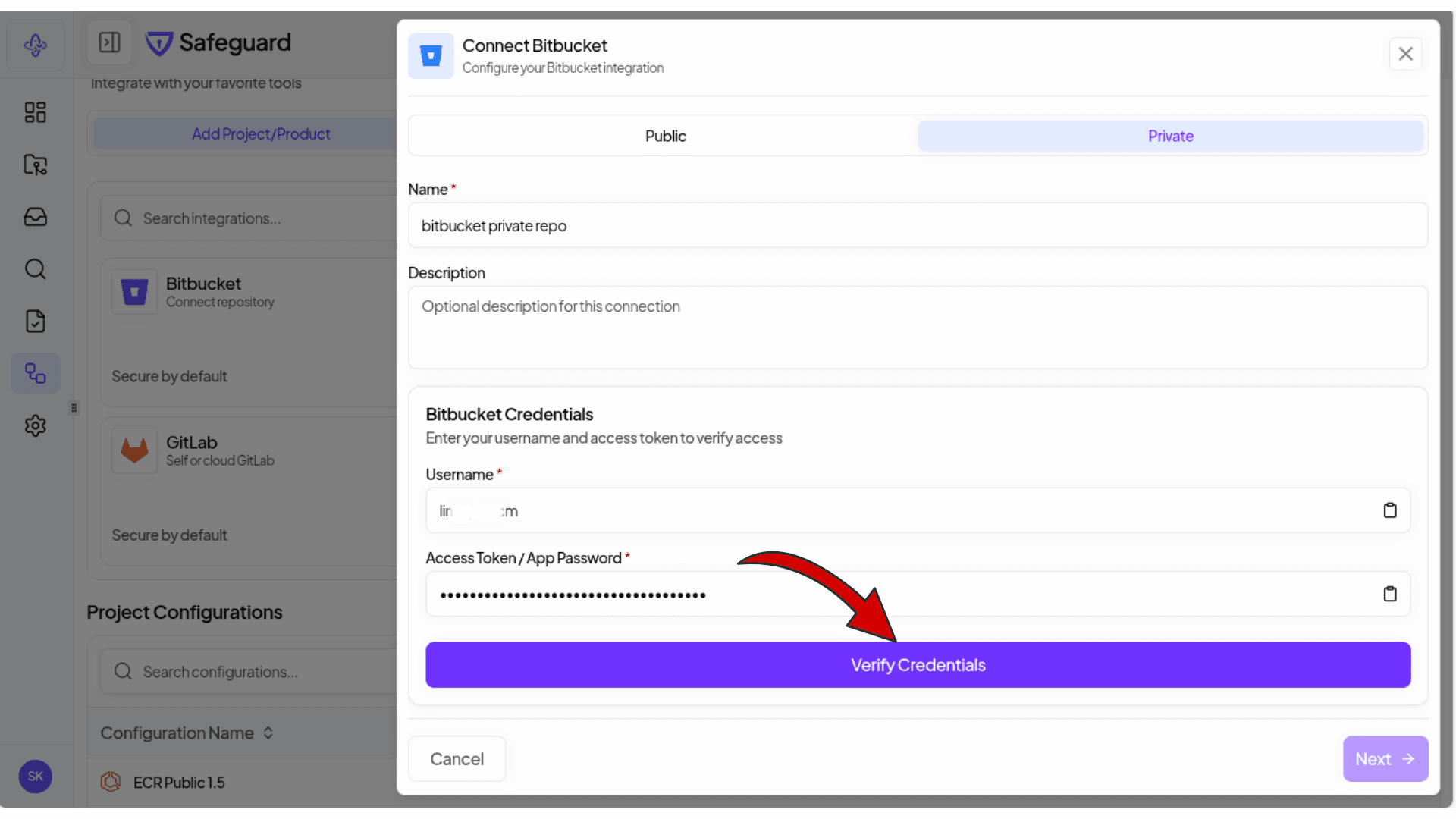
Step 2: Enter Credentials
- Select Private tab
- Enter a Name for this configuration
- Optionally add a Description
- Enter your Bitbucket Credentials:
- Username - Your Bitbucket username
- Access Token / App Password - Your Bitbucket app password or access token
- Click Verify Credentials
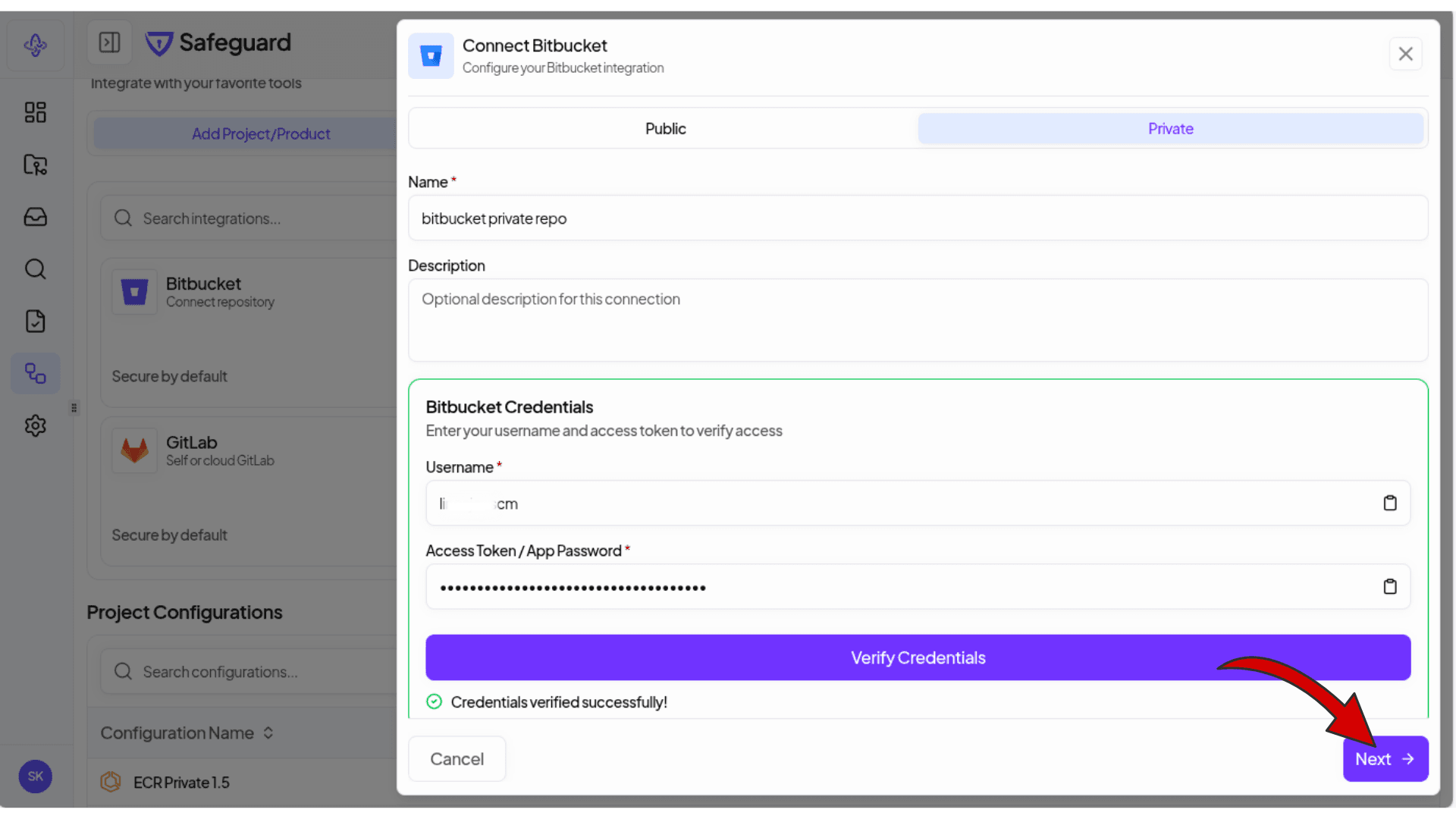
Step 3: Credentials Verified
Once credentials are verified successfully, you'll see "Credentials verified successfully!" message. Click Next to proceed.
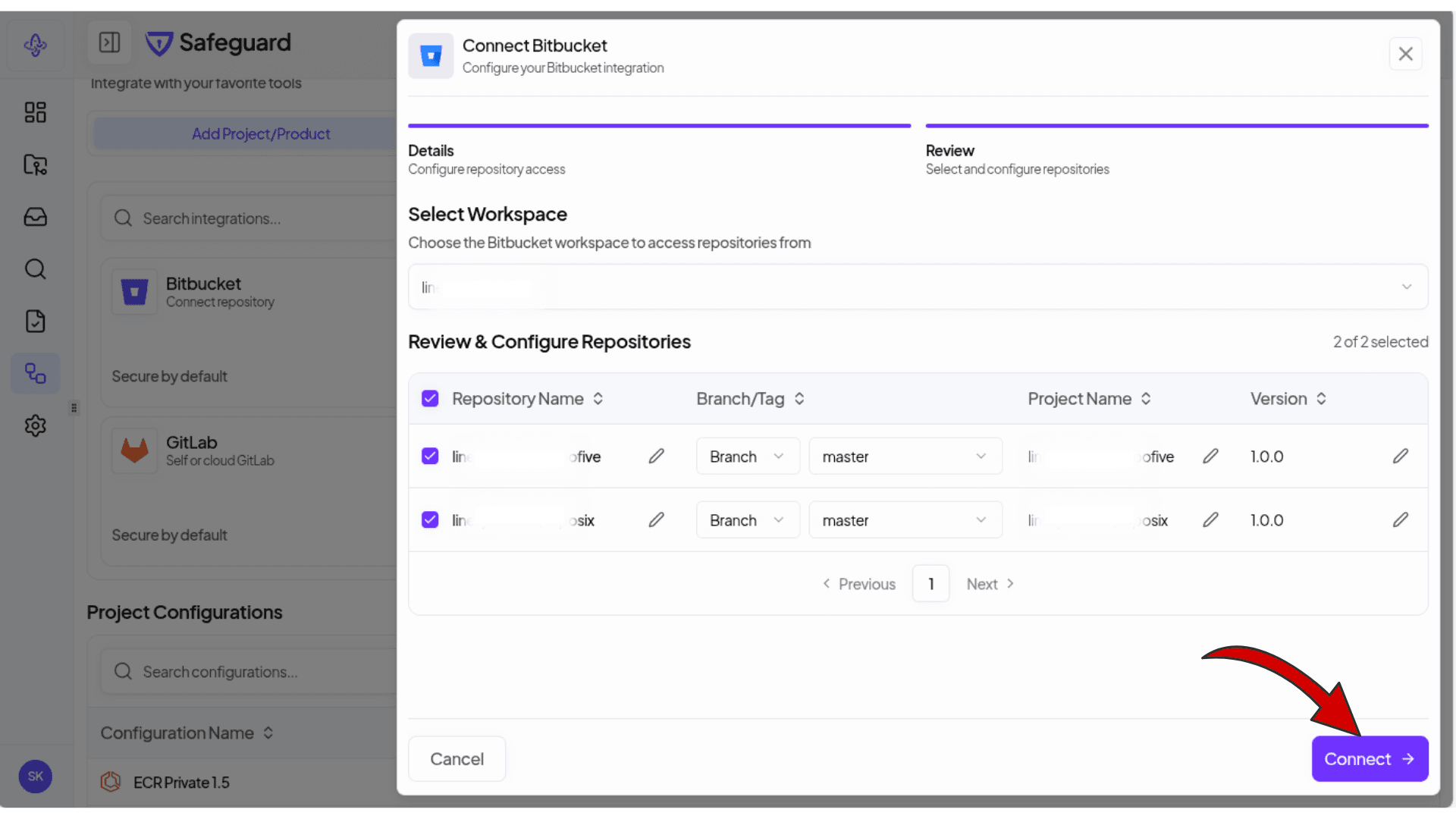
Step 4: Select Workspace and Repositories
- Select Workspace - Choose the Bitbucket workspace to access repositories from
- Review & Configure Repositories - Select repositories, configure branch/tag, project name, and version
Click Connect to complete the integration.
Step 5: View All Configurations
Your new configuration will appear alongside any existing configurations in the Project Configurations table.
Viewing Your Projects
After adding integrations, navigate to Projects from the sidebar to see all your added projects. The Projects table displays:
| Column | Description |
|---|---|
| Project Name | Name of the project (click to view details) |
| Version | Version tag or branch |
| Status | Active or inactive status |
| Organizations | Organization assignment |
| Findings | Summary counts (E, C, H, M, L) |
| Vulnerabilities | Vulnerability count |
Use the search bar, column selector, and export options to manage your projects list.
Generation Options
| Option | Description |
|---|---|
| Project Name | Identifier for this SBOM |
| Version | Version tag (auto-detected from git tags) |
| Branch/Tag | Specific branch or tag to scan |
| Include Dev Dependencies | Include development dependencies |
| Deep Analysis | Enable Griffin AI deep analysis |
Generation Times
| Project Size | Approximate Time |
|---|---|
| Small (under 100 dependencies) | Under 1 minute |
| Medium (100-500 dependencies) | 2-5 minutes |
| Large (500+ dependencies) | 5-15 minutes |
Continuous Scanning
Safeguard performs daily continuous scanning of all your projects to detect new vulnerabilities as they are disclosed. This ensures your security posture is always up-to-date.
Enable additional scanning triggers:
- On Push - Scan on every commit to monitored branches
- Scheduled - Daily, weekly, or custom schedule
- On Release - Scan when new tags are created
CLI Usage
# Install the CLI
curl -fsSL https://cli.safeguard.sh/install | bash

# Open the terminal, then type /login and /scan .
safeguard

# Or scan from the command line, writing results under ./output
safeguard scan --dir .
A scan from the interactive terminal while signed in uploads the SBOM and findings to the platform; your source never leaves the machine.